
Cursor AI Tutorial: Set Up and Build Your First App

Modest Mitkus · November 20, 2026
This Cursor AI tutorial gets you from zero to a working first app: download Cursor, open an empty project folder, describe what you want to Agent, review the changes it makes, and run the result. You don't need to know how to code to follow along, and the whole setup takes about 15 minutes. Cursor is an AI-powered code editor, which means you tell it what to build in plain English and it writes, edits, and fixes the files for you.
Below you'll find the setup steps, a walkthrough for building a small app, the features worth learning first, and a few habits that keep you out of trouble.
What Cursor Is and Who It's For
Cursor is a code editor with an AI assistant built in, so you can describe a feature in plain language and watch it get written across your project. It looks and feels a lot like other popular editors, but the chat panel is the star of the show.
Why does this matter if you want to earn money from an app? Because building is no longer the slow, scary part. Plenty of non-coders now ship real web and mobile apps by describing what they want and reviewing what comes back. This approach is often called vibe coding, and if you want the bigger picture, CreateSell's piece on how to vibe code covers the mindset well.
If you already code, Cursor still saves you hours. It's just as handy for scaffolding boilerplate, hunting bugs, and refactoring as it is for beginners writing their first file.
Setting Up Cursor Step by Step
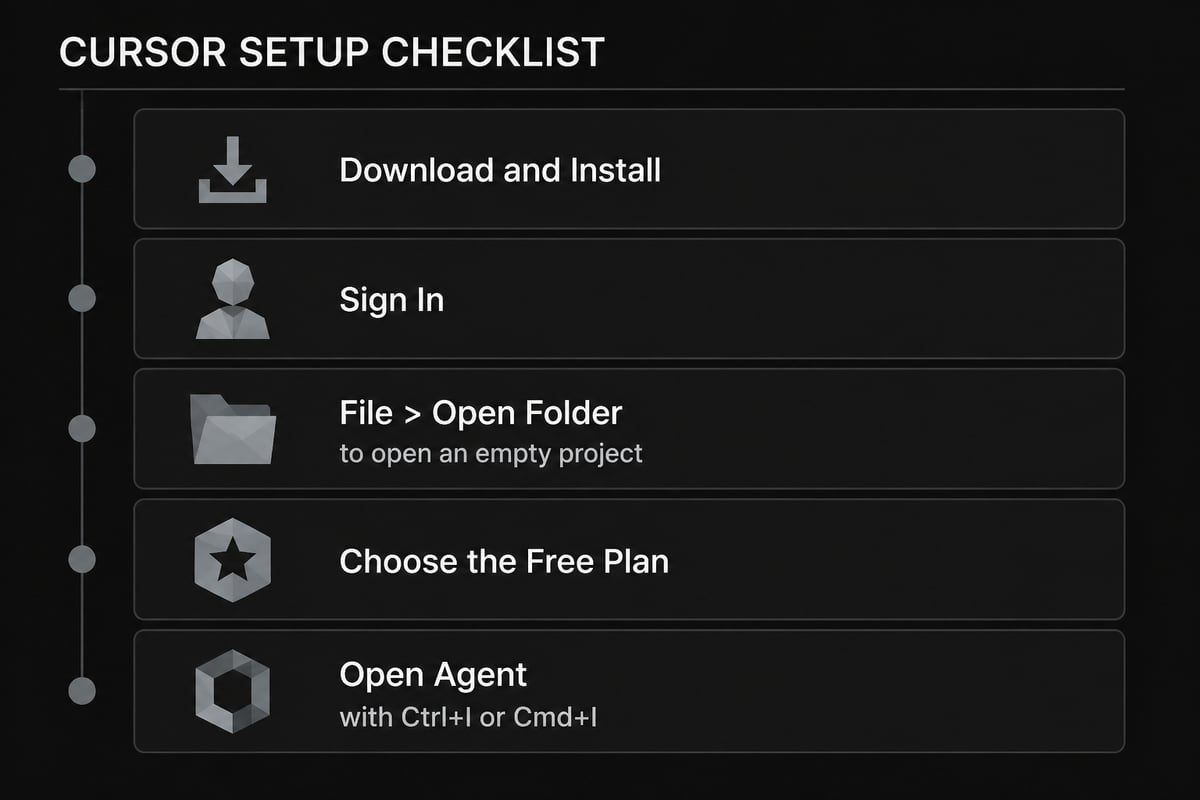
Setup is four quick moves: install, sign in, open a folder, and pick a plan. Here's the order that works.
- Download and install Cursor from the official site for Mac, Windows, or Linux.
- Sign in or create an account when the app first launches.
- Open a project folder. Cursor's first-project guide says to use File > Open Folder, so create a new empty folder on your computer (call it something like
my-first-app) and open that. - Check your plan. Cursor's pricing page lists a Free plan with limited AI usage and limited Agent and Chat requests, plus a paid Plus plan. Start free, and upgrade only when you hit the limits.
That's it. No terminal wizardry required at this stage.
One tip before you move on: if you're a total beginner, install a runtime like Node.js too, since many web apps need it to run locally. Ask Cursor itself to tell you what's missing. It will happily walk you through it.
Getting to Know the Cursor Interface
The Cursor window has three areas you'll use constantly: the file explorer on the left, the code editor in the middle, and the Agent chat panel on the side. Everything else is optional for now.
Open Agent with Cmd+I on Mac or Ctrl+I on Windows and Linux. According to the Cursor Agent mode docs, Agent can search your codebase, edit multiple files, run terminal commands, and fix errors. That last bit is what makes it feel like a teammate rather than a fancy autocomplete.
Here's what each part does in plain terms:
- File explorer: shows every file Agent creates or changes, so you can see your app growing.
- Editor: where you read (and occasionally tweak) the code.
- Agent panel: where you type requests in everyday English.
- Terminal: where the app actually runs; Agent can use it for you.
Build Your First App in Cursor
The easiest first project is something small and useful, like a simple tool with one screen and one job. Small scope means fewer surprises.
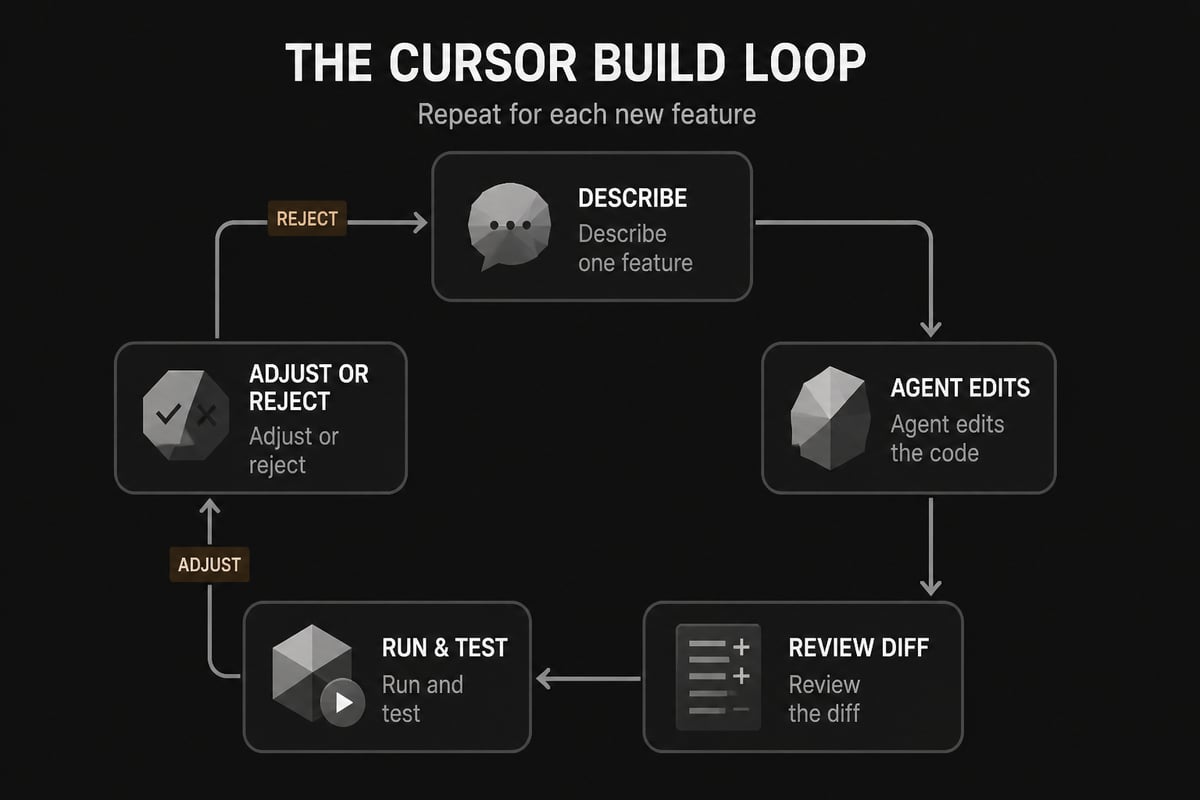
Follow this flow:
- Ask Agent to explain the folder. Even with an empty folder, the Quickstart recommends starting with a question. In an existing project, this is how you learn what's inside.
- Describe the app in one clear paragraph. For example: "Build a simple web page where I enter a bill amount and tip percentage and see the total. Keep it to one HTML file with clean, friendly styling."
- Let Agent create the files. Watch the explorer fill up.
- Review the diff. The first-project guide says to review Agent's edits in the diff view and reject anything you don't want.
- Run it. Ask Agent how to open the page in your browser, then try it.
- Make one small change. Ask for a dark mode toggle or a reset button, review the diff again, and run it again.
That cycle (ask, review, run, adjust) is the whole craft. Everything else is just doing it with bigger ideas.
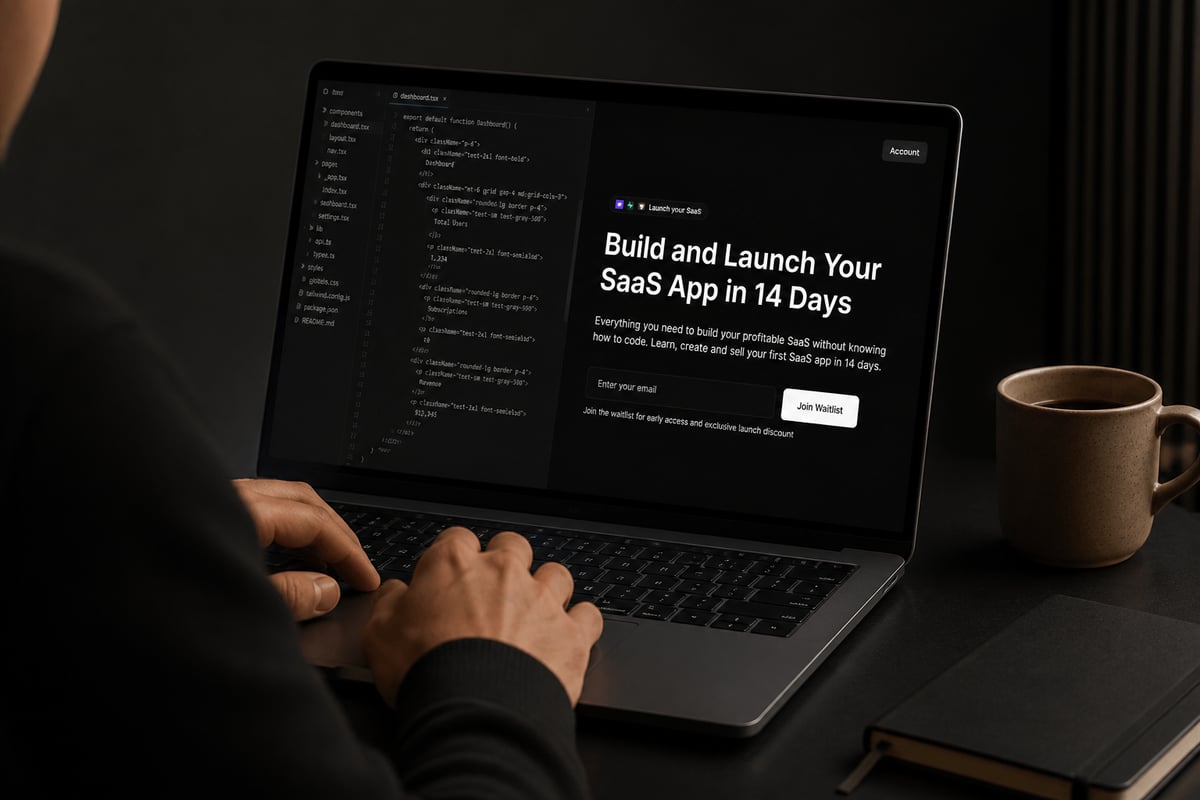
Once the tip calculator works, the real question is what to build that people will actually pay for. Build and Launch Your SaaS App in 14 Days from CreateSell walks you through building and selling your first SaaS app without knowing how to code, so your Cursor skills turn into a product instead of a folder of experiments.
Write Better Prompts for Cursor
Good prompts are specific about the goal, the limits, and what "done" looks like. Vague requests give you vague apps.
Compare these two:
- Weak: "Make me a budgeting app."
- Stronger: "Build a web page where I can add income and expense entries with a name, amount, and date, see a running balance, and delete entries. Store data in the browser so it survives a refresh. Keep the design clean and mobile-friendly."
A few habits make your prompts land better:
- State the stack or let Agent choose: "Use plain HTML, CSS, and JavaScript" keeps things beginner-friendly.
- Describe behavior, not code: say what the user sees and does.
- Ask for one feature at a time: big, tangled requests produce tangled results.
- Tell it what not to do: "Don't add a login yet" prevents scope creep.
If you're stuck on what to build, CreateSell's lists of micro SaaS ideas and app ideas that make money are a handy starting point for picking something with real demand.
Useful Cursor Features to Learn Early
Three features are worth learning in your first week: the @ symbol, Plan Mode, and checking your work.
Point Agent at specific files with @
Typing @ in the Agent input lets you point Cursor to specific files or folders, such as @auth.ts or @src/components/, per the first-project guide. Use it whenever you want a change to happen in one place and nowhere else. It cuts down on surprise edits.
Plan before you build with Plan Mode
Press Shift+Tab in the Agent input to toggle Plan Mode. As the Cursor Quickstart explains, it researches your codebase, asks clarifying questions, creates an implementation plan, and waits for your approval before building anything.
For anything bigger than a single-screen tool, this is the move. Reading a plan takes two minutes and can save you an hour of undoing.
Verify with checks
The same Quickstart suggests verifying changes with the project's existing checks, such as tests, a type checker, linting, or a local build. You don't need to understand each one. Just ask Agent: "Run the build and tell me if anything is broken." If something fails, tell it to fix the errors and run again.
Try the command line later
Once you're comfortable, Cursor agents also work from a terminal. The Cursor CLI docs cover installation and interactive sessions, which is handy if you like keeping everything in one window. And for rules, skills, and other advanced setup, the main Cursor documentation is the place to look. Neither is needed for your first app.

Common Beginner Mistakes to Avoid
Most early frustration comes from a handful of repeatable mistakes, and all of them are easy to fix.
- Accepting everything without reading. You don't have to understand every line, but skim the diff and reject changes that touch files you didn't expect.
- Building too much at once. A giant first prompt creates a giant mess. Start with one screen and one job.
- Skipping saves of progress. Commit your work (or ask Agent to set up version control) after each working step, so you can roll back.
- Fighting a broken chat. When Agent keeps looping on the same bug, start a fresh chat, restate the goal, and attach the relevant files with @.
- Forgetting that code isn't a business. A working app with no audience earns nothing, which is why the next section matters.
From Cursor Project to App That Earns
Building the app is roughly half the job, and selling it is the half where most projects stall. A polished tool that nobody hears about stays a hobby.
So before you build something big, ask three questions: who exactly is this for, what painful problem does it solve, and how will they find it? CreateSell's guide to customer segmentation helps with the first, and the post on app monetization strategies shows how people actually get paid, whether through subscriptions, one-time purchases, or something else.
If you can already code, this part probably sounds familiar. Plenty of developers ship great things and then wonder why nobody shows up. Pairing Cursor's speed with a clear plan for how to make sales means you can test ideas fast and put real offers in front of real people.
Quick Reference: Cursor Shortcuts and Modes
Keep this cheat sheet nearby for your first few sessions.
| Action | Shortcut or step | What it does |
|---|---|---|
| Open Agent | Cmd+I (Mac) or Ctrl+I (Windows/Linux) | Opens the AI assistant that can edit files and run commands |
| Reference a file | Type @ in the Agent input | Points Agent at a specific file or folder |
| Toggle Plan Mode | Shift+Tab in the Agent input | Creates a plan and waits for approval before building |
| Open a project | File > Open Folder | Loads your project folder into Cursor |
| Review changes | Diff view | Lets you accept or reject each edit |
Frequently Asked Questions
Is Cursor free to use?
Cursor has a Free plan with limited AI usage and limited Agent and Chat requests, according to its pricing page. It's enough to follow this tutorial and build a small app. Heavier use means a paid plan.
Can I use Cursor with no coding experience?
Yes. You describe what you want in plain English, review what Agent produces, and run it. You'll pick up code literacy along the way, but you don't need it to start.
What should my first Cursor project be?
Pick something with one screen and one clear job, like a calculator, a checklist tool, or a simple tracker. Small projects teach the ask, review, run loop quickly, and you can grow them feature by feature.
How do I stop Cursor from breaking my app?
Review the diff before accepting changes, ask for one feature at a time, use Plan Mode for bigger work, and run the project's checks after each change. Saving your progress after every working step gives you an easy way back.
Your next step is simple: install Cursor today, open an empty folder, and build the tip calculator before you do anything else. Once you've felt that ask, review, run loop work, you'll be ready to point it at an idea people will pay for. Build and Launch Your SaaS App in 14 Days shows how to go from first prototype to a sellable app, and the team behind it can help you with the marketing side that most projects miss, so join the CreateSell waitlist to be first in line when the doors open.


