
Mobile App Development for Beginners: Start Building Apps

Modest Mitkus
May 14, 2026
So you've got an app idea bouncing around in your head, and you're wondering if you can actually build it yourself. The good news? Mobile app development for beginners is more accessible than ever in 2026. You don't need a computer science degree or years of coding experience to create something people will actually use. With the right approach and tools, you can go from complete newbie to published app developer faster than you think. Let's break down everything you need to know to get started on your app development journey.
Understanding the Mobile App Landscape
Before you write a single line of code, you need to understand what type of app you're building. The mobile world splits into two main camps: iOS and Android. Each has its own development environment, programming languages, and quirks.
iOS apps run on iPhones and iPads, using Apple's ecosystem. Android apps run on devices from Samsung, Google, and hundreds of other manufacturers. Some developers choose to build for one platform first, then expand later. Others go the cross-platform route from day one.
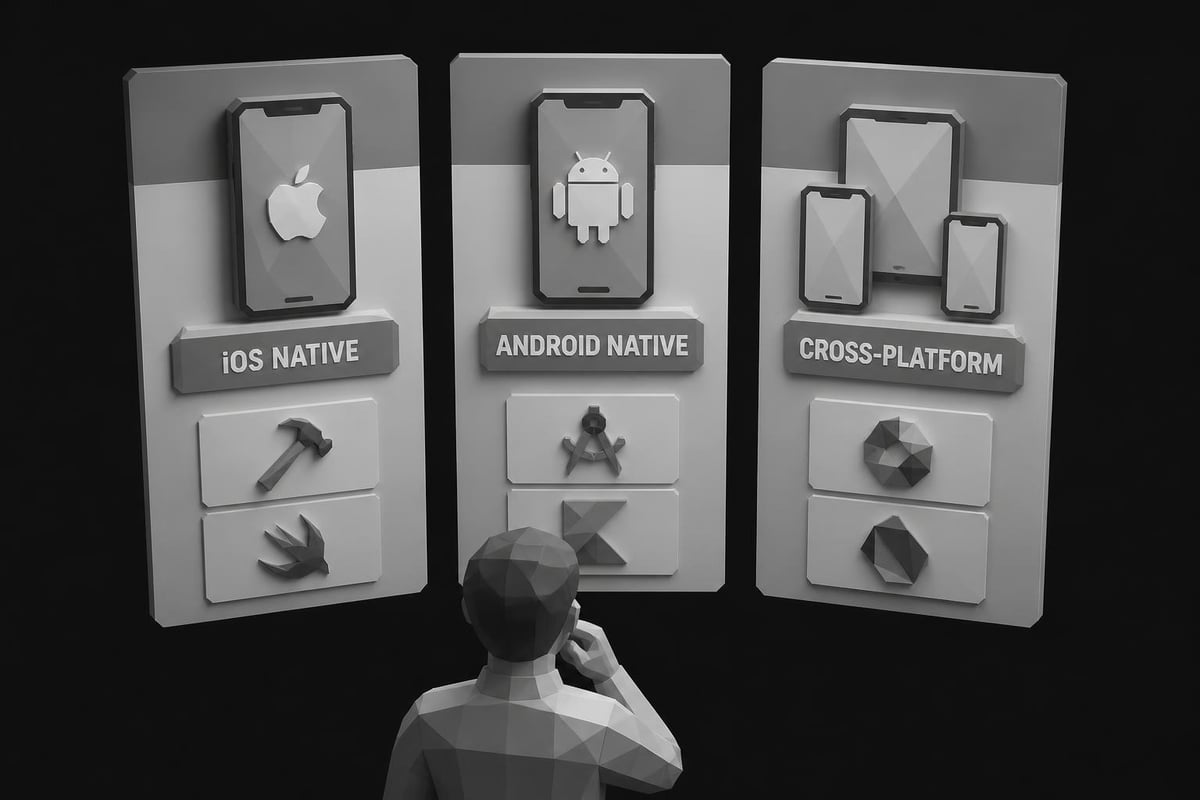
Here's what makes each approach different:
| Approach | Best For | Learning Curve | Tools |
|---|---|---|---|
| iOS Native | Apple-focused audience, premium apps | Moderate | Xcode, Swift |
| Android Native | Broader market reach, customization | Moderate | Android Studio, Kotlin |
| Cross-Platform | Budget-conscious, faster launch | Easier | Flutter, React Native |
Native vs. Cross-Platform Development
Native development means building specifically for iOS or Android. You're using each platform's official tools and languages. The apps tend to perform better and feel more polished, but you're essentially building two separate apps if you want both platforms.
Cross-platform development lets you write code once and deploy to both iOS and Android. Frameworks like Flutter and React Native have gotten incredibly good at this. For mobile app development for beginners, cross-platform tools often make more sense because you're learning one skillset instead of two.
The tradeoff? Sometimes you'll hit limitations or need to write platform-specific code anyway. But for most apps, especially when you're starting out, cross-platform gets you 90% of the way there with half the effort.
Choosing Your Development Path
You've got options. Like, a lot of options. The best mobile app development software ranges from visual builders with zero code required to full-fledged integrated development environments (IDEs) for writing everything from scratch.
No-Code and Low-Code Platforms
If you're testing an idea or want to see results immediately, no-code platforms let you drag and drop your way to a working app. They're perfect for MVPs (minimum viable products) and simple utilities.
Popular no-code options include:
- Bubble (web and mobile)
- Adalo (mobile-focused)
- Glide (turns spreadsheets into apps)
- FlutterFlow (visual Flutter builder)
These platforms handle the technical stuff while you focus on design and functionality. You won't learn traditional coding, but you'll understand app logic, user flows, and design principles.
Traditional Coding Routes
Want to really understand what's happening under the hood? Learning to code gives you unlimited flexibility. This comprehensive guide to mobile app development walks through the traditional approach step by step.
For iOS, you'll learn Swift (Apple's modern programming language) and use Xcode as your development environment. For Android, Kotlin has become the go-to language, paired with Android Studio.
Cross-platform developers often choose:
- React Native (uses JavaScript/React)
- Flutter (uses Dart language)
- Xamarin (uses C#)
React Native has the advantage if you already know web development. Flutter's known for beautiful interfaces and excellent performance. Pick based on what feels right and what jobs or opportunities you see in your area.
Setting Up Your Development Environment
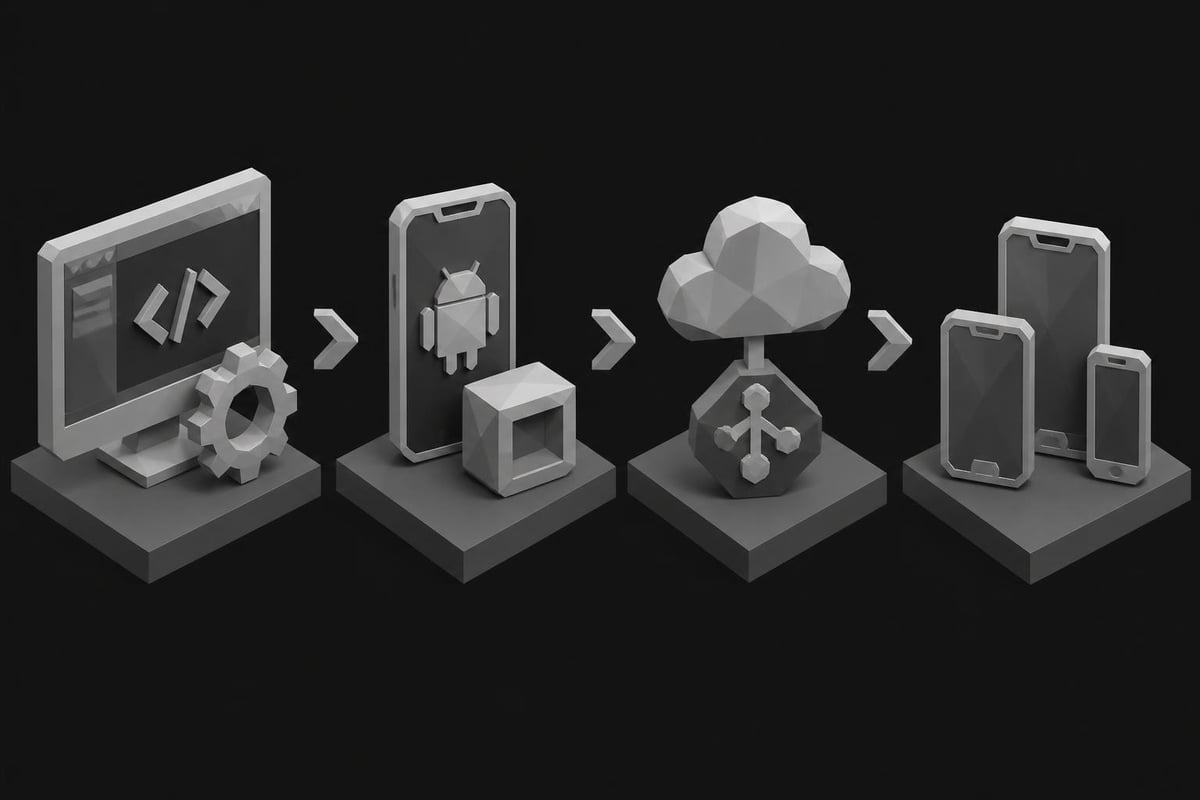
Let's get practical. You need the right tools installed on your computer before you can start building. Mobile app development for beginners starts with proper setup.
Hardware Requirements
For iOS development, you absolutely need a Mac. Apple requires Xcode, which only runs on macOS. No way around it. Any Mac from the last few years will work fine, though more RAM (16GB+) makes life easier.
For Android or cross-platform development, Windows, Mac, or Linux all work. Android Studio runs on everything. Your computer should have at least 8GB of RAM, but 16GB is better when you're running emulators.
Essential Software Installation
Here's your basic toolkit:
- IDE (Integrated Development Environment): Xcode for iOS, Android Studio for Android, or VS Code for cross-platform
- Version control: Git for tracking changes
- Emulators: Virtual devices to test your app without physical phones
- Package managers: npm, CocoaPods, or Gradle depending on your platform
The first time you run an Android emulator, expect it to take forever. Grab a coffee. This is normal. iOS simulators are faster but still resource-intensive.
Learning the Fundamentals
You can't skip the basics, but you don't need to master everything before you start building. Mobile app development for beginners works best when you learn by doing.
Core Concepts Every Developer Needs
Variables and data types are how your app remembers information. Functions are reusable blocks of code. Conditionals (if/else statements) let your app make decisions. Loops repeat actions. Objects and classes organize complex code.
Sound overwhelming? It's not. You use these concepts in tiny pieces, building gradually. Simplilearn's free app development course gives you hands-on practice with these fundamentals while building an actual calculator app.
Understanding App Architecture
Apps aren't just one big file of code. They're organized into:
- UI (User Interface): What users see and tap
- Logic: The brains that process actions
- Data: Where information gets stored
- APIs: Connections to external services
Most modern apps follow the MVC (Model-View-Controller) or MVVM (Model-View-ViewModel) pattern. Don't stress about memorizing these acronyms. As you build, you'll naturally separate your code into these categories because it makes sense.
Building Your First App
Theory's great, but let's build something real. Your first app should be simple enough to finish but complex enough to teach you the essentials.
Classic Beginner Projects
Start with one of these proven learning projects:
- To-do list: Create, read, update, delete tasks (CRUD operations)
- Weather app: Fetch data from an API and display it nicely
- Calculator: Handle user input and perform operations
- Note-taking app: Store and retrieve text data
- Timer/stopwatch: Work with time functions and state management
Pick the one that excites you most. You'll stick with it longer if you actually care about the result.
The Development Process
Here's how a typical app comes together:
- Sketch the UI: Draw screens on paper or use Figma
- Create the layout: Build the visual structure in your IDE
- Add functionality: Make buttons actually do something
- Connect data: Store and retrieve information
- Test everything: Break your app in creative ways
- Fix bugs: Because there will be bugs
- Polish: Improve design and user experience
You'll cycle through steps 3-6 repeatedly. That's normal. Professional developers do the same thing.
If you're looking for structured guidance, there are resources that walk you through building and launching your first app in just two weeks. The key is following a proven system that covers everything from concept to App Store submission.
Designing User-Friendly Interfaces
Your app could have brilliant functionality, but if it's ugly or confusing, nobody will use it. Mobile app development for beginners often focuses too much on code and not enough on design.
Design Principles That Matter
Keep it simple. Every extra button is a chance for users to get confused. Make touchable elements obvious. Buttons should look like buttons. Use consistent spacing. Random gaps look unprofessional. Choose readable fonts. If grandma can't read it, it's too small or too fancy.
Both iOS and Android have official design guidelines:
| Platform | Design System | Key Principles |
|---|---|---|
| iOS | Human Interface Guidelines | Clarity, deference, depth |
| Android | Material Design | Material metaphor, bold graphics, meaningful motion |
You don't need to memorize these, but skim through them. You'll understand why apps feel "right" on each platform.
Tools for UI Design
Figma is the industry standard for designing app interfaces. It's free for individual use and lets you create interactive prototypes before writing code. Adobe XD is another solid option.
Many developers sketch by hand first. It's faster for exploring ideas, and you're not committed to any particular design decision yet. Once you know what you want, move to a design tool for precise layouts.
Working With Data and APIs
Apps become way more interesting when they connect to the internet or store data locally. Mobile app development for beginners should cover data handling early because it's central to most apps.
Local Data Storage
UserDefaults (iOS) and SharedPreferences (Android) store small amounts of simple data like user settings. SQLite handles larger structured data like a database of all your notes. Core Data (iOS) and Room (Android) are more sophisticated frameworks for complex data relationships.
For cross-platform apps, packages like Hive or SQLite work everywhere with minimal platform-specific code.
Connecting to APIs
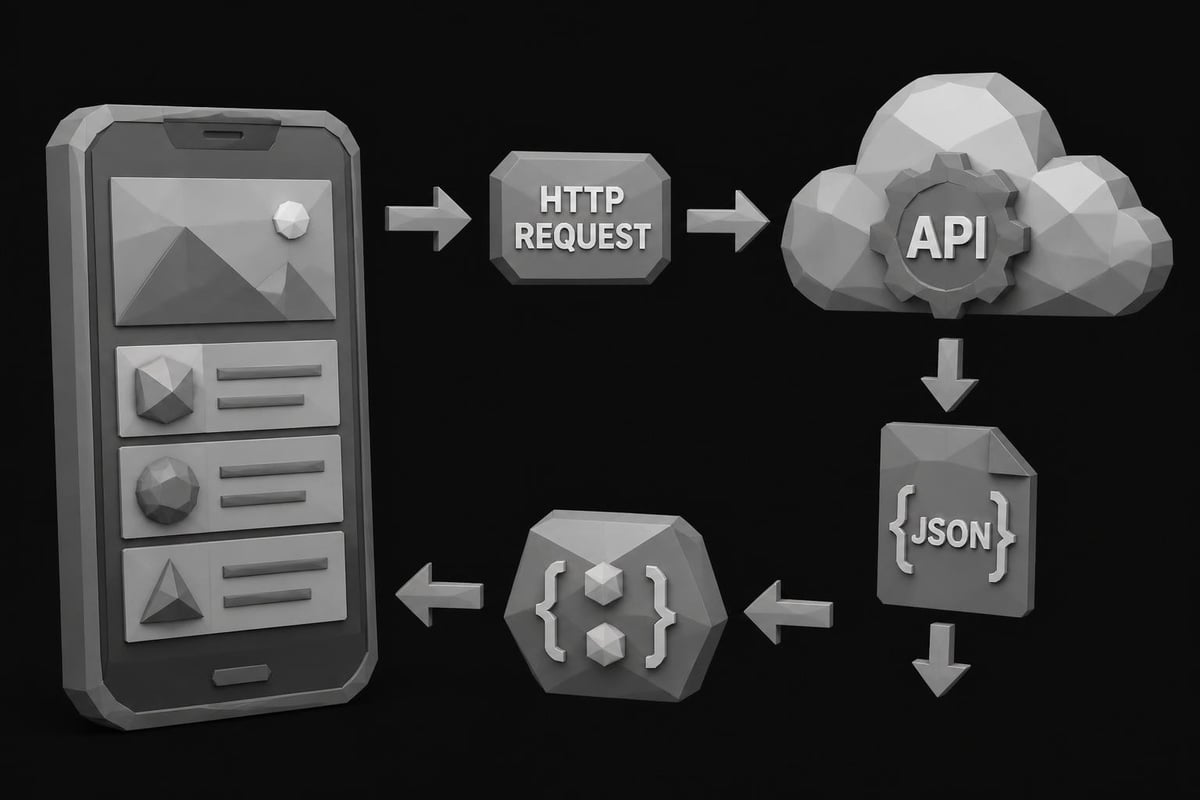
APIs (Application Programming Interfaces) let your app grab data from the internet. Want to show weather? There's an API. Stock prices? API. Cat pictures? Definitely an API for that.
You'll make HTTP requests (GET, POST, PUT, DELETE) to API endpoints and receive responses (usually in JSON format). Then you parse that JSON and display it in your app.
Most APIs require an API key for authentication. Sign up, get your key, and include it with your requests. Keep it secret - don't hardcode it directly in your app if you're planning to open-source the code.
Testing and Debugging Your App
Your app will have bugs. Lots of them. That's not failure - it's part of the process. Mobile app development for beginners includes learning to find and fix problems efficiently.
Types of Testing
Manual testing means you open your app and tap around, trying to break things. Do this constantly as you build. Automated testing writes code that tests your code. Sounds weird, but it catches issues before users do.
Unit tests verify individual functions work correctly. Integration tests check that different parts work together. UI tests simulate user interactions automatically.
Don't obsess over 100% test coverage when starting out. Test the critical paths (the main things users will do) and add more tests as you grow.
Common Debugging Techniques
When something breaks (and it will), here's what to do:
- Read the error message: It usually tells you exactly what's wrong
- Use print statements: Output values to see what's actually happening
- Set breakpoints: Pause code execution and inspect variables
- Check Stack Overflow: Someone else has had your exact problem
- Take a break: Fresh eyes spot obvious mistakes
The debugger built into your IDE is incredibly powerful. Learn to use it instead of relying solely on print statements.
Publishing Your App
You've built something cool. Now let's get it in front of users. The app stores have specific requirements, and the submission process can feel daunting at first.
Preparing for Launch
Before submitting to app stores, you need:
- App icon in multiple sizes
- Screenshots showing your app's key features
- Description explaining what your app does
- Privacy policy (required by both stores)
- Keywords for search optimization (iOS)
- App category selection
- Pricing model decision
Test your app on actual devices, not just emulators. Borrow friends' phones if you need to check different screen sizes and OS versions.
App Store vs. Google Play
| Requirement | Apple App Store | Google Play Store |
|---|---|---|
| Developer Account Fee | $99/year | $25 one-time |
| Review Time | 1-3 days | Hours to 1 day |
| Review Process | Strict guidelines | More lenient |
| Update Speed | Same review process | Faster updates |
Apple's review team actually uses your app and checks for guideline violations. Common rejection reasons include crashes, incomplete features, misleading descriptions, and privacy violations. Google's automated system catches technical issues but allows more flexibility in app concepts.
Growing Your Skills Beyond Basics
You've learned the fundamentals. Where do you go from here? Mobile app development for beginners is just the starting point. The real growth happens when you keep building.
Advanced Topics to Explore
Push notifications keep users engaged. In-app purchases monetize your apps. Analytics show how people actually use your features. Backend integration with services like Firebase adds powerful capabilities without managing servers.
Animation makes apps feel alive and professional. Both iOS and Android have extensive animation frameworks. Start simple with transitions between screens, then add more sophisticated motion.
Accessibility ensures everyone can use your app, including people with disabilities. It's not just good ethics - it's better design for everyone.
Learning Resources and Communities
You're not alone in this journey. Millions of developers started exactly where you are. If you need professional help bringing your app idea to life, platforms like FreelanceDEV connect you with experienced mobile developers who can build your project or teach you advanced techniques.
Join communities on Reddit (/r/iOSProgramming, /r/androiddev), Discord, and Stack Overflow. When you get stuck, someone there has probably solved your exact problem. When you're not stuck, help others. Teaching solidifies your own understanding.
Building Apps as Digital Products
Here's something most tutorials won't tell you: mobile apps can become products that generate income while you sleep. You're not just learning a skill - you're learning to create assets.
Think about apps you could build that solve real problems. A productivity tool for freelancers. A tracker for a specific hobby. A game that fills a gap in the market. Mobile app development for beginners often focuses purely on technical skills, but the real opportunity lies in creating products people will pay for.
The beauty of digital products is scalability. Build once, sell infinitely. No inventory, no shipping, no customer service headaches (well, minimal ones). Your app works for you 24/7.
Monetization Strategies
How do you actually make money from apps?
- Paid downloads: Charge upfront (harder to succeed but higher revenue per user)
- Freemium: Free app with premium features unlocked via purchase
- Subscriptions: Recurring revenue (best long-term model)
- Ads: Free app supported by advertising (lower quality experience)
- Sponsorships: Partner with brands for specific features
Start simple. Get users first, then figure out monetization. An app with 10,000 active users has options. An app with zero users just has dreams.
Common Mistakes to Avoid
Learn from others' mistakes instead of making them all yourself. These trip up most beginners in mobile app development:
Scope creep kills projects. You start with a simple idea, then keep adding "just one more feature" until you're building Facebook. Resist this. Ship something small and working.
Ignoring performance optimization early. Then suddenly your app takes 10 seconds to open and you don't know why. Profile your app regularly, even when it seems fine.
Not backing up your code. Use Git from day one. Push to GitHub or GitLab regularly. Your laptop will die at the worst possible moment.
Trying to learn everything before starting. You'll never feel "ready." Start building with what you know, and learn what you need as you need it.
Copying code without understanding it. Stack Overflow is helpful, but if you just paste solutions without comprehending them, you'll be stuck when something similar breaks.
The Path Forward
Mobile app development for beginners isn't about becoming an expert overnight. It's about consistent progress. Build small projects. Finish them. Learn from each one. Then build something slightly more ambitious.
Your first app will be rough around the edges. That's perfect. Your second app will be better. By your fifth, you'll look back and barely recognize how far you've come.
The mobile app world keeps evolving. New frameworks appear, best practices change, and devices get more powerful. Stay curious. Keep building. Most importantly, don't let perfectionism stop you from shipping.
Starting your journey in mobile app development opens doors to creating digital products that can transform how you work and earn. Whether you're building simple tools or complex applications, the skills you develop become assets that keep paying dividends. If you're ready to stop trading hours for dollars and start building apps that generate income around the clock, CreateSell provides the structured path and resources to turn your app ideas into profitable digital products. Take that first step today - your future self will thank you.